
OpenSora Image to Video Guide: Keep the First Frame Stable
A practical OpenSora image to video guide for holding composition, writing motion prompts, and fixing drift without overcomplicating the shot.
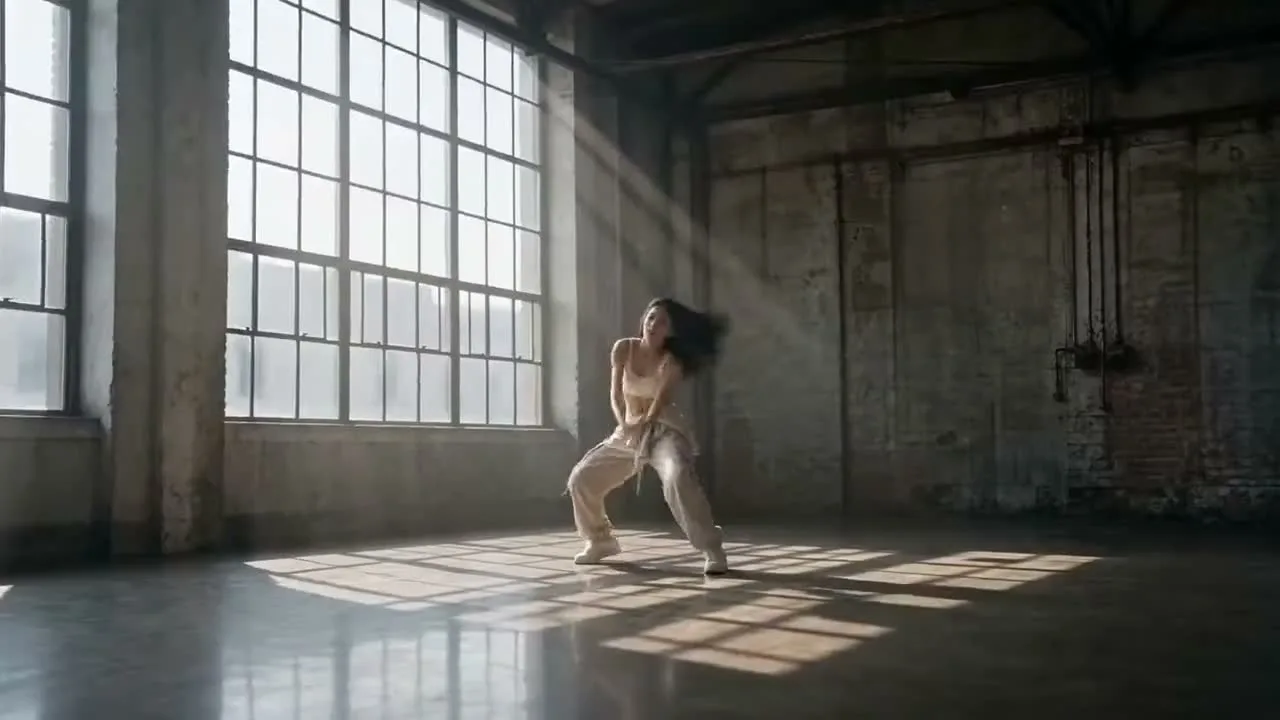
OpenSora image-to-video works best when the reference frame already solves the hard visual decisions. Start on the OpenSora 2 homepage, open Image to Video when you care about exact composition, and keep the prompt focused on motion, camera, timing, and constraints. If you do not have a frame worth protecting yet, build one first in Text to Image or Qwen Image 3, then return to the OpenSora 2 generator.
The shortest version of this guide is simple: let the image hold composition, let the text hold movement, and only ask for one motion arc at a time. If the first frame is unstable, fix the still. If the frame is good but the animation drifts, simplify the motion prompt instead of decorating it with more style language.
What image-to-video is actually solving
Text-to-video is strong when you are still exploring what the scene should look like. Image-to-video is for the opposite moment. You already know the frame, the subject, the wardrobe, the prop placement, or the lighting mood, and you want motion without reopening every visual decision.
That distinction matters because people often treat image-to-video as "text-to-video plus a picture." In practice, it is a different control pattern. The image is not decoration. It is the anchor. It tells the model what the opening frame, the subject silhouette, and the spatial layout should feel like before the motion prompt begins to push the scene forward.
The Open-Sora 2.0 paper describes a dedicated image-to-video training stage and then a high-resolution fine-tuning stage for image-to-video, not just a text-only pipeline stretched further. The Hugging Face model card also says the 11B release supports both text-to-video and image-to-video in one model, while noting that the model is optimized for image-to-video and uses a text-to-image-to-video pipeline for higher-quality text-only generation. That is exactly why composition-heavy tasks belong here.
When image-to-video is the right first move
Use image-to-video first when one of these is true:
- the first frame must match a specific brand, character, or layout
- the product position matters more than narrative discovery
- the background geometry needs to stay recognizable
- the reader cares about one clean motion beat instead of a full mini-story
- previous text-only attempts kept mutating the subject or the camera
Good image-to-video use cases are narrower than "make a whole movie." Think hero-product loops, fashion stills that need a small garment motion, creator portraits with a controlled push-in, or motion tests where the opening composition is already approved.
If you are still deciding what the scene should be, go back to Text to Video or the earlier OpenSora 2 prompt guide. Image-to-video gives you less exploratory freedom on purpose. That is the tradeoff that buys you stability.
Start with a frame that is already worth protecting
The biggest mistake in image-to-video is trying to animate a weak still. If the frame is cluttered, the face is off, the product silhouette is ambiguous, or the lighting is not the mood you want, animation will not magically solve it. Motion adds complexity. It does not rescue composition.
That is why the fastest workflow is often:
- generate or choose a strong still
- verify the subject, layout, and lighting
- animate one short movement
- revise one motion variable at a time
If you need a still first, use Text to Image or Qwen Image 3 to get the frame closer before you animate it. This is usually faster than trying to correct a mediocre frame inside repeated video runs.
What the prompt should do after the image is loaded
Once the reference image exists, the prompt has a smaller job. It should explain:
- what moves
- how far it moves
- whether the camera moves
- how long the action should feel
- which artifacts are unacceptable
It should not retell the whole picture unless you need to reinforce one visible detail that keeps changing.
Use a short prompt spine like this:
Reference frame stays intact. The dancer shifts weight forward, lifts both arms, turns slightly to camera left, then settles into a final pause. Slow continuous camera push-in. Soft morning light stays stable. No hard cuts, no background crowd, no limb duplication, no sudden costume changes.
That works because every sentence changes a visible behavior. Nothing is there just to sound cinematic.
The safest motion arc is shorter than you think
Image-to-video gets unstable when you ask a fixed frame to become three scenes at once. The still already encodes one moment. If the prompt asks for a big walk cycle, a camera orbit, a dramatic emotional beat, extra props, and a lighting change, the model has to invent too much between frames.
Safer motion arcs usually look like:
- a slow push-in while the subject blinks, turns, or breathes
- a product rotation with controlled reflections
- a garment sway with one step and a pause
- a single gesture such as reaching, looking up, or leaning forward
- a subtle environmental animation such as rain, fog, or steam around a stable subject
Try this baseline:
Animate the still with one controlled motion phrase. The subject takes one small step forward, turns the shoulders slightly, and lets the fabric trail naturally behind the movement. Camera stays smooth and continuous. No scene change, no extra characters, no abrupt zoom.
Shorter motion beats are not a creative limitation. They are what keep the first frame recognizable.
Camera control beats style control
Many image-to-video failures are actually camera failures. The subject may be fine, but the shot turns into a pan, a dolly, a cut, or a pseudo-handheld wobble that the original frame never asked for. When people describe this as "drift," they are often describing camera invention rather than subject invention.
So write the camera line as explicitly as the motion line. If the shot should remain nearly locked, say that. If it should push in slowly, say that. If it should stay eye-level and not orbit, say that too.
Camera remains fixed at eye level with only a minimal forward push. No orbit, no side swing, no sudden pull-back, no cutaway framing.
This kind of instruction is more useful than stacking extra adjectives about quality. In image-to-video, composition stability is usually worth more than mood density.
Four reusable prompt patterns
These are not universal templates. They are working shells for common image-to-video jobs.
Portrait motion shell
Animate the reference portrait with one calm motion arc. The subject inhales, shifts slightly toward camera, blinks once, and lets the hair move softly with the turn. Camera stays stable with a gentle push-in. Lighting remains consistent. No facial morphing, no background change, no extra people.
Fashion still shell
Use the reference image as the exact opening frame. The model takes one slow step, the coat hem swings naturally, and the shoulders rotate slightly while the gaze stays confident. Smooth front-facing tracking feel, no hard cuts, no duplicate limbs, no location change.
Product demo shell
Keep the product shape identical to the still. Add a slow reveal motion with a subtle camera push while the object rotates slightly and highlights slide across the surface. Stable background, premium reflections, no floating parts, no warped labels, no extra props.
Environment animation shell
Preserve the composition of the reference frame. Animate only the rain, fog, and one moving subject crossing the foreground. Camera remains locked. Soft atmospheric motion, believable reflections, no sudden weather shift, no new signage, no extra crowd.
The pattern is the same every time: preserve, animate, constrain.
Why drift still happens even with a good reference
There are four common reasons:
1. The prompt asks for too many events
If the still shows one pose and the prompt asks for a full sequence, the model invents transitions aggressively.
2. The camera line is underspecified
When camera behavior is not explicit, the model fills the gap with generic cinematic movement.
3. Style words conflict with the image
If the still is clean and realistic but the prompt layers in dreamlike, hyper-surreal, explosive, and highly cinematic directions, coherence drops.
4. The still itself is weak
If the face, hand pose, product outline, or environment is ambiguous, animation exposes the weakness quickly.
This is why the fix is usually subtraction, not addition.
How to revise without breaking the good parts
After each run, write notes in three buckets:
- keep
- simplify
- change
For example:
Keep: the facial likeness, the loft lighting, the final arm position.
Simplify: remove extra style language and the idea of a dramatic ending.
Change: reduce the camera move to a slow push-in and shorten the motion to one turn plus one pause.
That note is often more valuable than writing a fresh paragraph prompt. Image-to-video improves when you protect what already worked.
A practical OpenSora workflow for composition-heavy shots
This site already has the route structure for a disciplined image-to-video loop:
- Start from the OpenSora 2 homepage so you stay inside the owned route cluster.
- Generate or refine the still in Text to Image or Qwen Image 3 if the frame is not ready.
- Open Image to Video.
- Use a short motion prompt with an explicit camera line.
- Regenerate one variable at a time.
- If you still do not know what the motion language should look like, return to the companion OpenSora 2 prompt guide and tighten the wording before another video pass.
That loop is practical because it matches the actual site routes. It does not depend on imaginary controls, unsupported settings, or a hidden storyboard layer that the current route does not expose.
What this guide does and does not promise
This guide is about control, not guarantees. It does not claim exact ranking outcomes, exact indexing outcomes, or universal prompt superiority. It also does not claim that a reference image can force perfect identity or perfect physics in every generation.
What it does claim is narrower and more useful:
- image-to-video is the safer choice when composition is already known
- prompts should describe motion rather than rewrite the whole frame
- short motion arcs preserve identity better than sequence-heavy prompts
- explicit camera language prevents many fake "drift" complaints
- a better still is often the real fix
Those are workflow claims, not promises of perfect output.
Reference image prep decides more than the prompt does
It is worth stating this separately because it saves a surprising amount of wasted generation time. A good reference image is not simply "high quality." It is operationally useful. That means the subject silhouette is readable, the important prop edges are clean, the face is not half-obscured when identity matters, and the lighting already points toward the mood you want to animate.
If you are preparing a still for a talking-head style motion shot, look for:
- readable eyes and mouth shape
- no extreme perspective distortion
- enough background room for a small push-in
- clean separation between subject and background
If you are preparing a product still, look for:
- a stable outline
- reflections that already feel premium
- labels that are legible before motion
- enough negative space for the object to rotate or breathe
If those fundamentals are absent, even a careful motion prompt is forced into repair mode. The image-to-video step becomes much calmer when the still already carries the exact job you want the next three to five seconds to perform.
One practical check is to ask, "If this were the thumbnail forever, would I still approve it?" If the answer is no, do not animate it yet. Fix the frame first. That question prevents a lot of false debugging, because many users blame motion prompts for issues that were already visible in the still: the jawline was soft, the bottle label was warped, the hand pose was awkward, or the lighting direction was undecided. Animation exposes those weaknesses faster than a static page does. In a production workflow, reference-frame approval is not wasted caution. It is how you avoid paying for five motion retries that were doomed from the first upload.
This is also where a quick still review with a teammate or a second pass in your own checklist helps. It is much easier to catch a weak silhouette or a distracting background object before motion starts than after you have already spent multiple generations trying to explain away a frame problem with prompt edits.
FAQ
What makes image-to-video better than text-only prompting?
Image-to-video anchors composition, subject identity, and prop layout before motion is added, so you spend less time fighting first-frame drift.
What should stay in the prompt when I already have a reference image?
Keep the motion, camera, timing, lighting, and constraints. The reference image should handle composition, while the text explains how the scene should move.
Why does the video still drift away from my image?
Drift usually comes from asking for too many new events, strong camera moves, or style changes that conflict with the original frame.
Should I describe the whole backstory of the scene?
No. Focus on the visible action in the next few seconds. Image-to-video works better with short, measurable movement instructions than narrative exposition.
When should I create a new still instead of retrying the same frame?
Create a new still when the frame itself is weak, unclear, or missing the exact composition you need. Re-prompting motion will not fix a bad starting frame.
What is the safest way to revise a failing image-to-video shot?
Keep the reference image, remove extra style language, simplify the motion arc, and change one variable at a time such as camera, speed, or background activity.
If you are ready to test the workflow, return to the OpenSora 2 homepage, open Image to Video, and keep the OpenSora 2 generator nearby for the next pass. Start from a frame you would already approve as a still, then animate only one motion arc before you change anything else.